<?xml version="1.0"?>
<html>
  <head>
    <style type="text/css">
    @media print {
      body { }
      p.img { text-align: center; page-break-inside: avoid }
      img.CC { display: inline }
    }
    @media screen {
      body { max-width: 800px; margin: auto }
      p.img { text-align: center }
      img.CC { display: inline }
    }
    p.date {
      font-size: smaller;
      margin: 0;
    }
    p.ref {
      text-indent: -2em;
      padding-left: 2em;
    }
  </style>
    <!-- Google Analytics tracking code -->
    <script>
  (function(i,s,o,g,r,a,m){i['GoogleAnalyticsObject']=r;i[r]=i[r]||function(){
  (i[r].q=i[r].q||[]).push(arguments)},i[r].l=1*new Date();a=s.createElement(o),
  m=s.getElementsByTagName(o)[0];a.async=1;a.src=g;m.parentNode.insertBefore(a,m)
  })(window,document,'script','https://www.google-analytics.com/analytics.js','ga');

  ga('create', 'UA-88814550-1', 'auto');
  ga('send', 'pageview');

  </script>
  </head>
  <body>
    <h1>Automating R Demonstration Videos</h1>
    <p>
      <span style="font-style: italic">by Paul Murrell</span>
      <a href="http://orcid.org">
        <img alt="" src="https://www.stat.auckland.ac.nz/~paul/ORCID/ORCiD.png" style="width: 16px; height: 16px; vertical-align: middle"/>
      </a>
      <span style="font-family: mono; font-size: small">
        <a href="http://orcid.org/0000-0002-3224-8858">http://orcid.org/0000-0002-3224-8858</a>
      </span>
    </p>
    <p class="date">
      <rcode echo="FALSE" results="asis"><![CDATA[
cat(format(Sys.Date(), "%A %d %B %Y"))
    ]]></rcode>
    </p>
    <rcode id="init" echo="FALSE" message="FALSE" results="hide"><![CDATA[
opts_chunk$set(comment=" ", tidy=FALSE)
  ]]></rcode>
    <hr/>
    <p><a rel="license" href="http://creativecommons.org/licenses/by/4.0/"><img class="CC" alt="Creative Commons License" style="border-width:0" src="https://i.creativecommons.org/l/by/4.0/88x31.png"/></a><br/><span xmlns:dct="http://purl.org/dc/terms/" property="dct:title">This document</span>
    is licensed under a <a rel="license" href="http://creativecommons.org/licenses/by/4.0/">Creative
    Commons Attribution 4.0 International License</a>.
  </p>
    <hr/>
    <!--
  <p style="color: red">
    FIXME: add Piwik web stats ?
  </p>
  <p style="color: red">
    FIXME: add "how to cite this document" at end
  </p>
  <p style="color: red">
    FIXME: investigate useful ways to markup the reference section
    for harvesting by citation services ?
  </p>
  <p style="color: red">
    FIXME: need to create Docker image pmur002/video-poc
  </p>
  <p style="color: red">
    FIXME: once Docker image is ready, need to build using 'make docker'
  </p>
  <p style="color: red">
    FIXME: once document is building with 'make docker', need to push
    pmur002/video-poc to Docker Hub
  </p>
  -->
    <p>
    This document describes a proof-of-concept for producing R demonstration
    videos in a fully-automated manner.  The "script" for the video 
    consists of a text file containing code chunks paired with text 
    commentary.  The video is produced by running the code while
    recording a screen capture, using text-to-speech software to 
    record audio of the commentary, then combining video and audio
    with appropriate timings and pauses.
  </p>
    <div>
      <h2>Table of Contents:</h2>
      <ul>
        <li>
          <a href="#intro">Introduction</a>
        </li>
        <li>
          <a href="#overview">Overview</a>
        </li>
        <li>
          <a href="#script">Writing the script</a>
        </li>
        <li>
          <a href="#audio">Recording audio</a>
        </li>
        <li>
          <a href="#stage">Setting the stage</a>
        </li>
        <li>
          <a href="#video">Recording video</a>
        </li>
        <li>
          <a href="#combine">Post-production</a>
        </li>
        <li>
          <a href="#movie">Making Movies</a>
        </li>
        <li>
          <a href="#discussion">Discussion</a>
        </li>
        <li>
          <a href="##Requirements">Technical requirements</a>
        </li>
        <li>
          <a href="#Resources">Resources</a>
        </li>
        <li>
          <a href="#References">References</a>
        </li>
      </ul>
    </div>
    <h2>
      <a name="intro">Introduction</a>
    </h2>
    <p>
    As part of some paranoid preparations for a 
    <a href="https://www.stat.auckland.ac.nz/~paul/Talks/NZSA2016/DOM-slides/index.html">conference presentation</a>
    at <a href="http://orsnz.org.nz/conf50/">NZSA 2016</a>,
    I wanted to create some short videos of R code demonstrations.
    The presentation slides included samples of R code and I was planning to
    run the R code samples live as part of the presentation.  As a
    backup, in case the R code did not work on the day, I wanted 
    to produce videos of the R code working.
  </p>
    <p>
    I have dabbled with creating short videos before and drew two main
    conclusions from the experience:
    my decision not to pursue a career in hollywood was
    a sound one; and generating videos is an expensive process in terms
    of human time.  
  </p>
    <p>
    The cost of generating a video is of course compounded by the fact that,
    inevitably, any single video must be generated multiple times.
    For example, any mistake in typing R code, or in narrating the 
    commentary requires a new recording.  
    Furthermore, any changes to the R code
    or to the commentary at a later date force additional recordings.
  </p>
    <p>
    This situation closely mirrors the creation of figures and R output
    in written reports, where manual cutting-and-pasting of images
    and R output used to waste a lot of time.  That problem has been
    solved through the adoption of literate documents
    and tools like 
    <a href="http://www.statistik.lmu.de/~leisch/Sweave/">Sweave</a> and
    <a href="http://yihui.name/knitr/">knitr</a>
    that include R code within the document itself, with automated
    processing taking care of embedding images and inserting R output
    in the final report.
  </p>
    <p>
    This document describes an attempt to bring that same level
    of automation to the generation of videos that demonstrate
    R code samples.
  </p>
    <h2>
      <a name="overview">Overview</a>
    </h2>
    <p>
    The task of creating a video of running R code combined with
    audio commentary was broken into the following sub-tasks:
  </p>
    <ul>
      <li><strong>Writing the "script"</strong>,
      a document that contains the R code to run and
      the accompanying text commentary.
    </li>
      <li><strong>Recording audio</strong> of the text commentary.
    </li>
      <li><strong>Setting the stage</strong>
      by arranging the desktop (e.g., opening a terminal
      window to run R within).
    </li>
      <li><strong>Recording video</strong> of the R code chunks running on screen.
    </li>
      <li><strong>Post-production</strong>
      by combining the audio and video, with appropriate timings.
    </li>
    </ul>
    <p>
    Each of these sub-tasks is addressed in a separate section below.
    This is only a proof of concept, which means, due to the nature
    of my work environment, the solutions are mostly based on Ubuntu Linux
    commands.
  </p>
    <h2>
      <a name="script">Writing the script</a>
    </h2>
    <p>
    The first step is to create a description of the video, consisting
    of R code chunks and text commentary.
    The examples in this document are based on a simple XML document
    structure for the video description.  An example of a simple video
    description file, <code>demo.xml</code>, is shown below.
  </p>
    <rcode echo="FALSE"><![CDATA[
xml <- readLines("demo.xml")
cat(xml, sep="\n")
  ]]></rcode>
    <p>
    R code is contained with an
    &lt;action&gt; element and text commentary is within a 
    &lt;dialogue&gt; element;
    a &lt;shot&gt; indicates a pairing of code and commentary 
    that should start at the same time;  a &lt;scene&gt; may contain
    one or more &lt;shot&gt;s and the complete &lt;script&gt; consists
    of the scenes run one after another.
  </p>
    <p>
    XML is used as the description format because it is so easy and reliable
    to extract components from XML.  For example, the following code
    extracts all of the 
    dialogue content from <code>demo.xml</code>.
  </p>
    <rcode><![CDATA[
library(xml2)
xml <- read_xml("demo.xml")
commentary <- xml_text(xml_find_all(xml, "//dialogue"))
commentary
  ]]></rcode>
    <p>
    It is also very easy and reliable to transform from one XML
    document to another.  The slides for my presentation 
    were XML (HTML), which meant that it was easy to extract 
    R code examples, plus (hidden) text commentary, to produce
    an XML video description with the structure above.
  </p>
    <h2>
      <a name="audio">Recording audio</a>
    </h2>
    <p>
    Having extracted text commentary from the video description,
    the screen reader <code>espeak</code> can be used 
    to automate the recording of the text commentary (to a WAV file).
  </p>
    <rcode><![CDATA[
system(paste0("espeak -w demo.wav '", commentary, "'"))
  ]]></rcode>
    <p class="img">
      <audio controls="controls">
        <source src="demo.wav" type="audio/wav"/>
      </audio>
    </p>
    <p>
    For timing purposes, we need to determine the duration of each
    audio segment. This can be achieved with the 'tuneR' package in R,
    by dividing the number of samples by the sampling rate.
  </p>
    <rcode><![CDATA[
library(tuneR)
demo <- readWave("demo.wav")
length(demo@left)/demo@samp.rate
  ]]></rcode>
    <p>
    Also for timing purpose, the recording may need padding with silence
    at the end;  this can also be achieved with 'tuneR'.
    The following code generates 3 seconds of silence, makes 
    the recording ready for appending (by finding a spot where 
    the recording is zero), and appends the silence to the end of the
    recording.
  </p>
    <rcode><![CDATA[
silence <- Wave(rep(0, 3*demo@samp.rate), 
                samp.rate=demo@samp.rate, bit=demo@bit)
demoPrep <- prepComb(demo, where="end")
demoWithSilence <- bind(demoPrep, silence)
writeWave(demoWithSilence, "demo-padded.wav")
  ]]></rcode>
    <p class="img">
      <audio controls="controls">
        <source src="demo-padded.wav" type="audio/wav"/>
      </audio>
    </p>
    <!--
  <p>
    Note that <code>demoPrep</code> will be shorter than
    <code>demo</code>, so to get the timings right, the duration
    calculation should be done on <code>demoPrep</code> rather than
    <code>demo</code>.
  </p>
  -->
    <h2>
      <a name="stage">Setting the stage</a>
    </h2>
    <p>
    Recording a video of R code running on screen requires 
    a combination of several tools.  The first step is to arrange
    the screen.  For the purposes of my presentation, this
    meant clearing the desktop and arranging a terminal window to
    run R within.
  </p>
    <p>
    A tiny package called 'wmctrl' has been created to provide
    an R interface to the <code>wmctrl</code> command, which
    allows us to perform this sort of task.
    For example, the following code clears the desktop 
    (minimizes all windows).
  </p>
    <rcode><![CDATA[
library(wmctrl)
showDesktop()
  ]]></rcode>
    <rcode echo="FALSE"><![CDATA[
# Small delay to allow windows to minimise
system("gnome-screenshot -d 1 -f clear-desktop.png")
  ]]></rcode>
    <p class="img">
      <img style="width: 80%" src="clear-desktop.png"/>
    </p>
    <p>
    The <code>openWindow</code> function from 'wmctrl' can be used to
    run a program that opens a window.  For example, the following code
    opens a terminal.
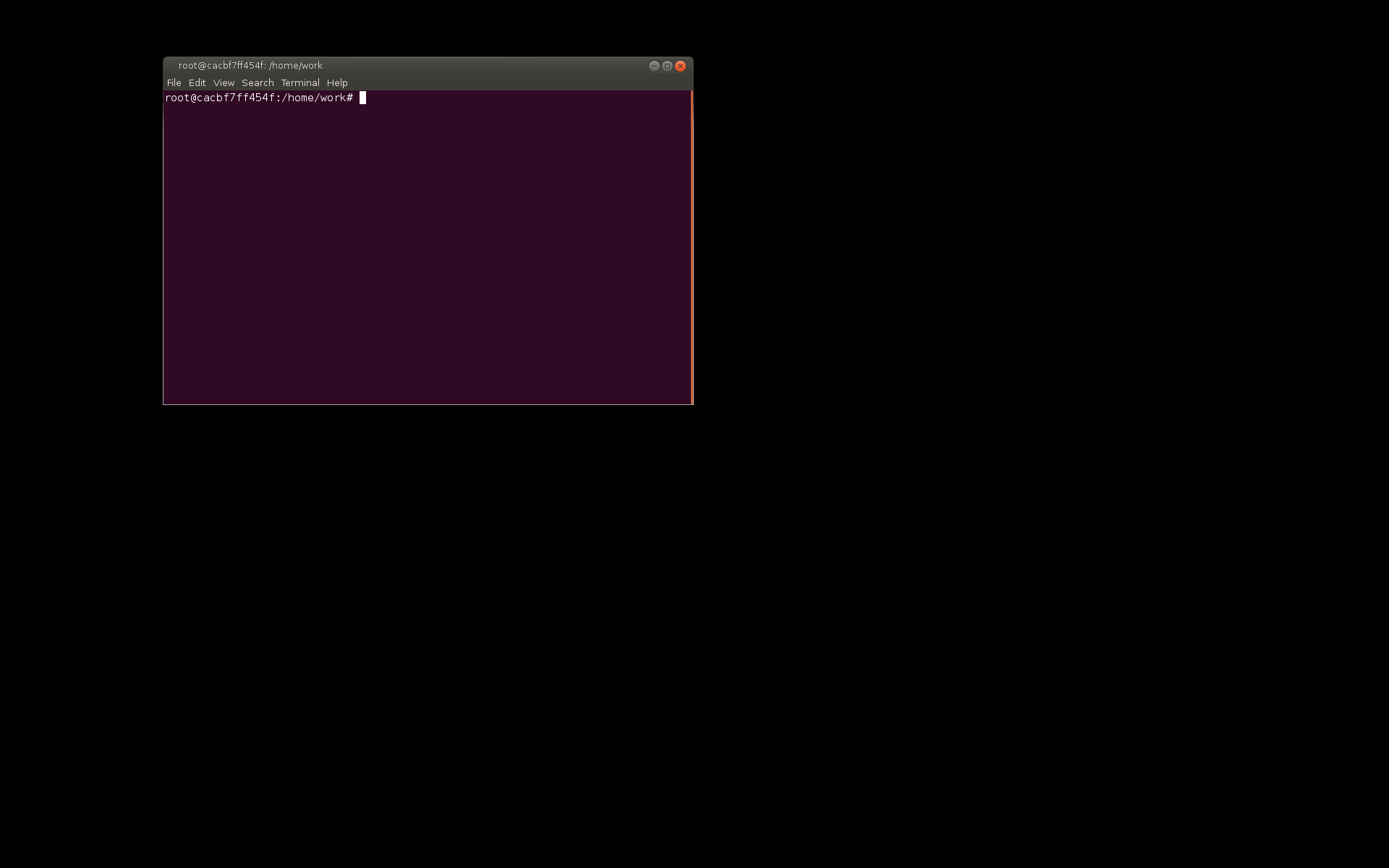
  </p>
    <rcode><![CDATA[
terminalID <- openWindow("gnome-terminal")
  ]]></rcode>
    <rcode echo="FALSE"><![CDATA[
# Small delay to allow windows to minimise
system("gnome-screenshot -d 1 -f terminal.png")
  ]]></rcode>
    <p class="img">
      <img style="width: 80%" src="terminal.png"/>
    </p>
    <p>
    The return value from <code>openWindow</code> is a unique identifier 
    for the window and  we can use this to locate and size the window.
    The following code first ensures that the window is not maximized
    in either direction and then sets the position and size of the 
    terminal window.
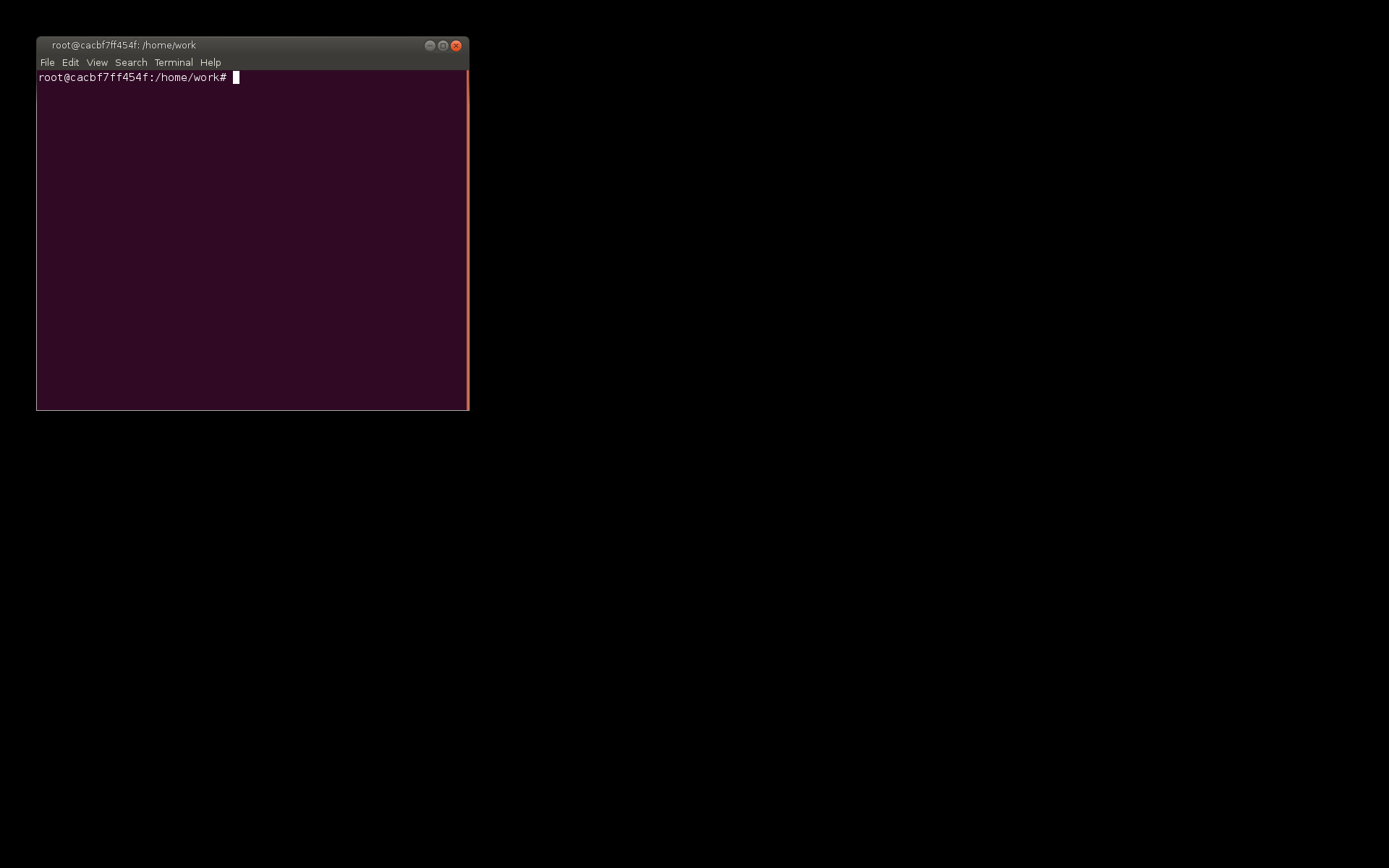
  </p>
    <rcode><![CDATA[
removeWindowState(terminalID, "maximized_horz")
removeWindowState(terminalID, "maximized_vert")
positionWindow(terminalID, 50, 50, 600, 500)
  ]]></rcode>
    <rcode echo="FALSE"><![CDATA[
# Small delay to allow windows to minimise
system("gnome-screenshot -d 1 -f terminal-sized.png")
  ]]></rcode>
    <p class="img">
      <img style="width: 80%" src="terminal-sized.png"/>
    </p>
    <p>
    We can clean up the desktop once we are finished by calling
    <code>closeWindow</code>.
  </p>
    <rcode><![CDATA[
closeWindow(terminalID)
  ]]></rcode>
    <h2>
      <a name="video">Recording video</a>
    </h2>
    <p>
    The next step is to run R in a terminal window. This is 
    straightforward by passing further arguments to 
    <code>openWindow</code>. 
  </p>
    <rcode warning="FALSE"><![CDATA[
terminalID <- openWindow("gnome-terminal", "-x R")
removeWindowState(terminalID, "maximized_horz")
removeWindowState(terminalID, "maximized_vert")
positionWindow(terminalID, 50, 50, 600, 500)
  ]]></rcode>
    <rcode echo="FALSE"><![CDATA[
system("gnome-screenshot -d 1 -f terminal-R.png")
  ]]></rcode>
    <p class="img">
      <img style="width: 80%" src="terminal-R.png"/>
    </p>
    <p>
    However, in addition to running R, we want to feed R code to the R session.
    For this task, 
    another tiny package called 'xdotool' has been created as a 
    simple wrapper around the <code>xdotool</code> command.  
    In the following code, the first step
    is to ensure that the terminal with R running has focus.
    The <code>typestring</code> function then simulates key strokes,
    which are consumed by the R commmand line.
  </p>
    <rcode><![CDATA[
focusWindow(terminalID)
library(xdotool)
typestring("plot(mpg ~ disp, mtcars, pch=16, col=rgb(0,0,1,.5), cex=2)\n")
  ]]></rcode>
    <p>
    An additional detail about this example is that the result of
    feeding that code to R is an R Graphics window.
    Futher functions from 'wmctrl' allow us to get information
    about that window and control its position as well.
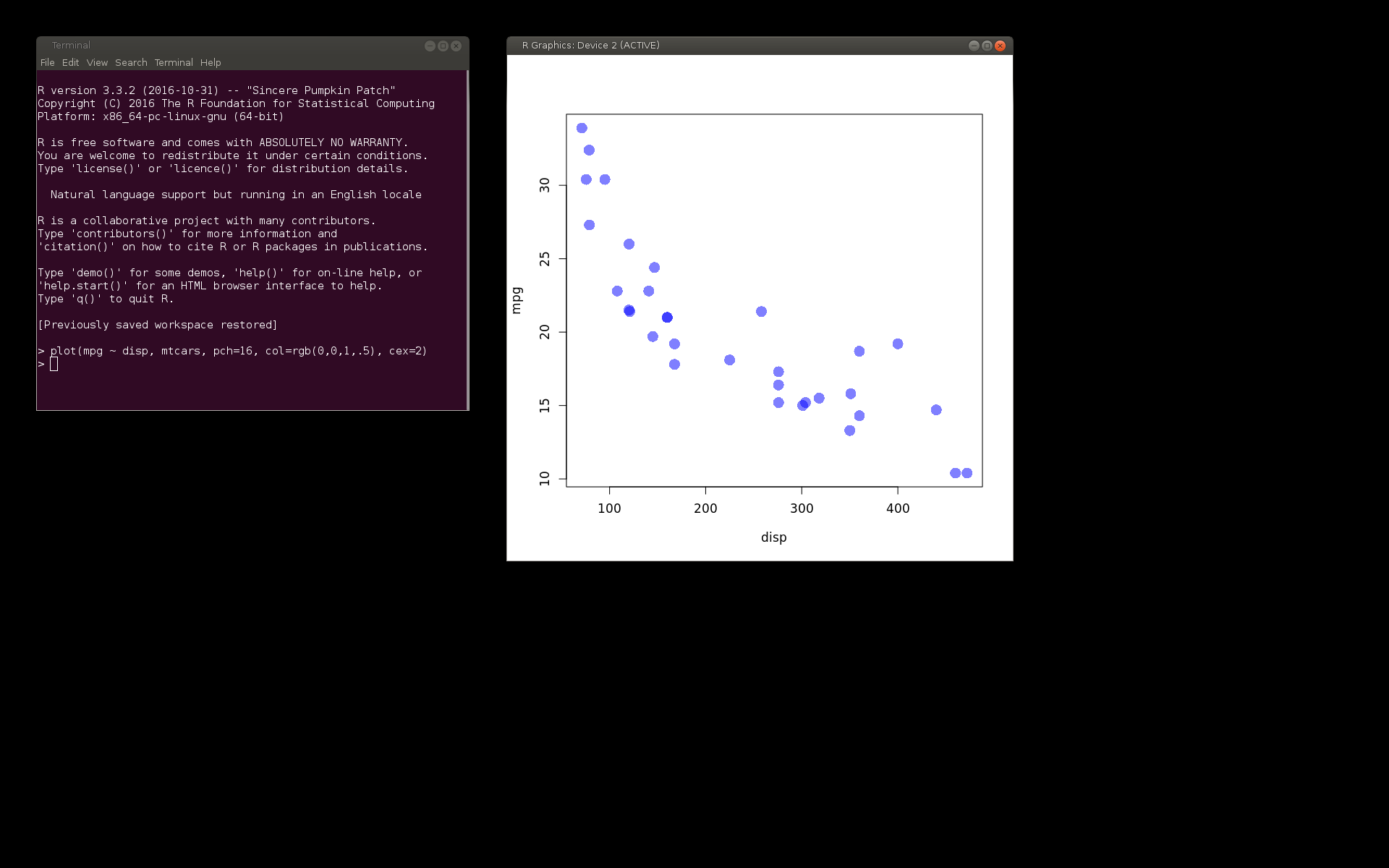
  </p>
    <rcode echo="FALSE"><![CDATA[
# Wait for R graphics window
Sys.sleep(2)
  ]]></rcode>
    <rcode><![CDATA[
RGID <- getWindowID("R Graphics")
locateWindow(RGID, 700, 50)
  ]]></rcode>
    <rcode echo="FALSE"><![CDATA[
# Small delay to allow windows to minimise
system("gnome-screenshot -d 1 -f terminal-feedR.png")
  ]]></rcode>
    <p class="img">
      <img style="width: 80%" src="terminal-feedR.png"/>
    </p>
    <p>
    The 'xdotool' package also provides functions for moving the mouse
    and simulating mouse clicks.
  </p>
    <p>
    The next step is to capture an R session as a video.
    A tiny package called 'ffmpeg' has been created as a simple
    wrapper around the <code>ffmpeg</code> command, which can help with
    recording and transforming videos.
    The code below records 5 seconds of screen activity
    and saves it to the file <code>video-feedR.webm</code>
    in WebM format (with VP8 video codec).  
    These are patent-unencumbered video codecs and container formats
    that should have support on most modern browsers.
    For this video, we feed the code from <code>demo.xml</code>.
  </p>
    <rcode><![CDATA[
code <- xml_text(xml_find_all(xml, "//action"))
cat(code)
  ]]></rcode>
    <rcode echo="FALSE"><![CDATA[
## Tidy up blank lines
code <- paste(gsub("^ +$", "", strsplit(code, "\n")[[1]]), collapse="\n")
  ]]></rcode>
    <p>
    The <code>screenInput</code> function is used to tell <code>ffmpeg</code>
    to capture the screen as input for the video.  
    The <code>fileOutput</code> function is used to describe the name and
    format for the output file that <code>ffmpeg</code> should generate.
    The argument <code>wait=FALSE</code> means that the R session
    will not block while the video is recording, so that the 
    subsequent <code>focusWindow</code> and <code>typestring</code>
    calls will be executed during the video recording.
  </p>
    <rcode><![CDATA[
library(ffmpeg)
ffmpeg(screenInput(w=1500, h=800, duration=5), 
       fileOutput("video-feedR.webm", vcodec="VP8"),
       overwrite=TRUE, wait=FALSE)
  ]]></rcode>
    <rcode><![CDATA[
focusWindow(terminalID)
typestring(code)
  ]]></rcode>
    <rcode echo="FALSE"><![CDATA[
## Wait for loop recording to finish
Sys.sleep(5)
## Ogg version (theora video)
system("ffmpeg2theora video-feedR.webm video-feedR.ogv")
  ]]></rcode>
    <p class="img">
      <video width="80%" controls="controls"><source src="video-feedR.webm" type="video/webm"/><source src="video-feedR.ogv" type="video/ogg"/>
      Your browser does not support the video tag.
    </video>
    </p>
    <p>
    The feeding of code to the R session can be made more complex.
    For example, code can be drip-fed one character at a time
    to simulate a person typing the code.  We can also
    type spaces as fast as possible (it is tedious to watch
    indenting being typed one character at a time).
    The following code lightly processes the code chunk from
    <code>demo.xml</code> to break it into blocks of whitespace and
    non-whitespace, and makes
    use of the <code>delay</code> argument to <code>typestring</code>
    to slow down the typing (of non-space characters).
    It also creates a video of the resulting activity on screen.
  </p>
    <rcode echo="FALSE"><![CDATA[
## This does not work - bug?
## processed <- strsplit(code, "\\b")[[1]]
## Use Perl-compatible workaround
  ]]></rcode>
    <rcode><![CDATA[
codeBits <- strsplit(code, "(?<=\\S)(?=\\s)|(?<=\\s)(?=\\S)", perl=TRUE)[[1]]
delays <- c(10, 100)
  ]]></rcode>
    <rcode><![CDATA[
ffmpeg(screenInput(w=700, h=600, duration=7), 
       fileOutput("video-dripFeedR.webm", vcodec="VP8"),
       overwrite=TRUE, wait=FALSE)
  ]]></rcode>
    <rcode><![CDATA[
focusWindow(terminalID)
typestring(codeBits, delays)
  ]]></rcode>
    <rcode echo="FALSE"><![CDATA[
## Wait for video recording to finish
Sys.sleep(3)
# Ogg version (theora video)
system("ffmpeg2theora video-dripFeedR.webm video-dripFeedR.ogv")
  ]]></rcode>
    <rcode echo="FALSE"><![CDATA[
# Window cleanup
# Takes down R Graphics window with terminal
closeWindow(terminalID)
  ]]></rcode>
    <p class="img">
      <video width="80%" controls="controls"><source src="video-dripFeedR.webm" type="video/webm"/><source src="video-dripFeedR.ogv" type="video/ogg"/>
      Your browser does not support the video tag.
    </video>
    </p>
    <h2>
      <a name="combine">Post-production</a>
    </h2>
    <p>
    The final step is to combine the audio and video streams.
    Simply "muxing" an audio file with a video file is straightforward
    with the <code>ffmpeg</code> function from the 'ffmpeg' package.
    In the following code, there are two input files, one audio
    stream and one video stream, which are combined into a single video
    file.  The WAV audio input is re-encoded using the Vorbis audio codec
    anad the VP8 video input is included without re-encoding.
  </p>
    <rcode><![CDATA[
ffmpeg(list(fileInput("demo.wav"), fileInput("video-dripFeedR.webm")),
       fileOutput("video-with-audio.webm", vcodec="copy", acodec="Vorbis"),
       overwrite=TRUE)
  ]]></rcode>
    <!--
  <rcode echo="FALSE"><![CDATA[
## Ogg version (theora video)
## Currently failing with audio resample errors
system("ffmpeg2theora video-with-audio.webm video-with-audio.ogv")
  ]]></rcode>
  -->
    <p class="img">
      <video width="80%" controls="controls"><source src="video-with-audio.webm" type="video/webm"/>
      Your browser does not support the video tag.
    </video>
    </p>
    <p>
    Several shots can be combined one after the other
    using <code>concatInput</code>
    with <code>ffmpeg</code>.  The following code just concatenates
    the <code>video-with-audio.webm</code> movie with itself.
  </p>
    <rcode><![CDATA[
ffmpeg(concatInput(rep("video-with-audio.webm", 2)),
       fileOutput("video-with-audio-twice.webm", vcode="copy", acodec="copy"),
       overwrite=TRUE)
  ]]></rcode>
    <p class="img">
      <video width="80%" controls="controls"><source src="video-with-audio-twice.webm" type="video/webm"/>
      Your browser does not support the video tag.
    </video>
    </p>
    <p>
    The only difficulty with combining multiple &lt;slot&gt;s
    arises with aligning the audio and
    video segments.  In the simple case above, the audio is slightly
    longer than the video, but <code>ffmpeg</code> automatically pads the video 
    to match.  Things get more complicated when we have multiple
    shots of text commentary and code chunks because we want there
    to be pauses in either the audio or the video so that the
    two streams are aligned at the start of each shot.
    The basic algorithm for aligning shots is as follows:
  </p>
    <pre>
    for each shot {
        audioLength = audio duration
        codeLength = (numChars - numSpaces)*delayBetweenChars
        if (audioLength &gt; codeLength) {
            pause after typing code
        } else {
            add silence to end of audio
        }
    }
  </pre>
    <h2>
      <a name="movie">Making Movies</a>
    </h2>
    <p>
    A tiny package called 'director' has been created to provide
    a convenient wrapper around the steps described above.
    This package supports a slightly more complex XML format for the 
    script description.  An example is provided in the file
    <a href="demo-2.xml"><code>demo-2.xml</code></a>.
  </p>
    <p>
    The 'director' package provides a single main function,
    <code>shootVideo</code>, that produces a movie from
    the XML script.  The return value of the function is
    a list containing paths to the video files that are produced;
    the complete movie, plus individual scenes.
  </p>
    <rcode warning="FALSE"><![CDATA[
library(director)
shootVideo("demo-2.xml", clean=TRUE)
  ]]></rcode>
    <p class="img">
      <video width="80%" controls="controls"><source src="demo-2-video/demo-2-movie.webm" type="video/webm"/>
      Your browser does not support the video tag.
    </video>
    </p>
    <p>
    The XML script file has the following structure:
  </p>
    <ul>
      <li>
      The &lt;script&gt; element contains a &lt;stage&gt; element
      followed by one or more &lt;scene&gt;s. The &lt;stage&gt; 
      describes how the desktop should be set up for recording and
      the &lt;scene&gt;s provide the code to run and the text commentary 
      to accompany each piece of code.
    </li>
      <li>
      The &lt;stage&gt; element has <code>x</code>, <code>y</code>,
      <code>width</code> and
      <code>height</code> attributes that describe the area of the screen
      that will be captured on video.  
      The &lt;stage&gt; contains
      one or more &lt;location&gt; elements.
    </li>
      <li>
      A &lt;location&gt; element has attributes
      <code>id</code>,
      <code>program</code>,
      <code>x</code>,
      <code>y</code>,
      <code>width</code>, and
      <code>height</code>.
      These are used to open a window
      at the specified location,  using the named program.
      The <code>id</code> attribute defaults to a numeric index.
      The dimensions of the &lt;stage&gt; default to
      the bounding box of the &lt;location&gt; elements.
      An example of a &lt;location&gt; element is shown below.
      <rcode echo="FALSE"><![CDATA[
xml2 <- read_xml("demo-2.xml")
cat(as.character(xml_find_first(xml2, "/script/stage/location")))
      ]]></rcode>
    </li>
      <li>
      A &lt;scene&gt; element has an <code>id</code> attribute
      that defaults to a numeric index.  
      A separate video is produced for each scene and the scenes
      are strung together to produce the complete movie.
      A &lt;scene&gt; element
      contains one or more &lt;shot&gt; elements.  
    </li>
      <li>
      A &lt;shot&gt; element has <code>location</code> and
      <code>duration</code> attributes. The <code>location</code>
      should match the <code>id</code> of one of the 
      &lt;location&gt; elements within the &lt;stage&gt; element;  
      this is used to give focus to
      the correct window for typing code.  The <code>duration</code>
      gives the shot duration in seconds;  if specified, this
      overrides the duration of the audio and code within the shot.
      A &lt;shot&gt; element contains zero or one &lt;action&gt; 
      elements and zero or one &lt;dialogue&gt; elements.
      It is possible for a &lt;shot&gt; to be empty and just 
      have a <code>duration</code> attribute (as shown below);  this
      produces a pause in the video.
      <rcode echo="FALSE"><![CDATA[
cat(as.character(xml_find_first(xml2, "/script/scene/shot[@duration]")))
      ]]></rcode>
    </li>
      <li>
      The content of an
      &lt;action&gt; element is the code to run;  this code is typed
      into the window specified by the <code>location</code> 
      attribute of the parent &lt;shot&gt; element.
      Because code is just typed in a window, the code does not have 
      to be R code.  The example below is used to type <code>R</code>
      in a terminal to start R.
      <rcode echo="FALSE"><![CDATA[
cat(as.character(xml_find_first(xml2, "/script/scene/shot[1]")))
      ]]></rcode>
    </li>
      <li>
      An &lt;action&gt; element has an <code>echo</code> attribute and
      if this is set to <code>"FALSE"</code>, the code is 
      <strong>not</strong> sent to the window with focus.  The code is run,
      but only within the R session that is coordinating the 
      video recording.  In the example, <code>demo-2.xml</code>,
      this is used to reposition
      an R graphics window (as shown below).  
      <rcode echo="FALSE"><![CDATA[
cat(as.character(xml_find_first(xml2, "/script/scene/shot/action[@echo]")))
      ]]></rcode>
    </li>
      <li>
      An &lt;action&gt; element also has <code>keydelay</code> and
      <code>linedelay</code> attributes.  These control the
      delay between typing (non-space) characters and the delay
      after each newline in a chunk of code (both in milliseconds).
      The former can be used to speed up the typing of code
      and the latter can be useful to pause after an expression
      that may take a moment to execute (as shown below).
      <rcode echo="FALSE"><![CDATA[
cat(as.character(xml_find_first(xml2, "/script/scene/shot/action[@linedelay]")))
      ]]></rcode>
    </li>
      <li>
      The content of a &lt;dialogue&gt; element is the text commentary
      to record as audio.
    </li>
    </ul>
    <!--
  <h2>Demonstration video</h2>
  <p style="color: red">
    Provide a (scripted) video demonstrating creating a demonstration
    video from scratch!?
  </p>
  -->
    <h2>
      <a name="discussion">Discussion</a>
    </h2>
    <p>
    The original motivation for this work was to automate the generation
    of  
    <a href="https://www.stat.auckland.ac.nz/~paul/Talks/NZSA2016/resources.html">a video</a> 
    of code examples for a 
    <a href="https://www.stat.auckland.ac.nz/~paul/Talks/NZSA2016/index.html#/">conference presentation</a>.
  </p>
    <p>
    It turned out to be a good idea to produce the video because the
    live demonstration of the code examples did not work during the
    conference presentation, and I was able to fall back on the video.
    However, the true value of this work to automate the creation
    of the video was reflected in the fact that I generated the video
    several times.  Because the video generation was automated, 
    it was very quick and easy to make changes to the code
    in the examples, to the text commentary, or to the timing, or even
    the order of the scenes and shots in the video.
  </p>
    <p>
    In summary, this work has already proven its value for my own purposes.
  </p>
    <h3>Other applications</h3>
    <p>
    The only other time that I have attempted to produce short videos
    of R code demonstrations was to support teaching.  I have done this
    only sparingly in the past because of the time and effort cost involved in 
    generating videos, but even more because of the cost
    of updating and maintaining them.  I am hopeful that this automated
    approach to generating videos will encourage me to make more 
    videos to support my teaching.
  </p>
    <p>
    Another benefit of automating video generation from a simple script
    is that it becomes easy to share and reuse videos.  It also
    becomes easy to place a video script under version control
    (e.g., host the video script on github).  The ability to
    easily (and programmatically) 
    modify and regenerate a video may facilitate the
    production of multiple versions of a video, e.g., 
    translations of text commentary to other languages.
    It could also be expanded to automatic generation of 
    "scene selection" menus, etc.
  </p>
    <h3>Limitations</h3>
    <p>
    The major limitation of this proof-of-conecept solution is that it
    is Linux-only 
    at this stage.  The <code>ffmpeg</code> program is cross-platform,
    so there is some hope that the 'ffmpeg' package might be portable
    to other platforms, but replacements would need to be sought
    for 'wmctrl' and 'xdotool' on Windows, for example.
  </p>
    <p>
    Another issue with this solution is that, 
    although recording is automated, the
    desktop is unusable for the duration of the recording;
    the desktop is being captured so I have to step away from 
    the keyboard and mouse while recording is happening.
    This problem can be avoided by running the entire recording
    off-screen, using something like 
    <a href="https://www.x.org/releases/X11R7.6/doc/man/man1/Xvfb.1.xhtml">Xvfb</a>.
    This is the approach taken for the Docker build of this document
    (see the <a href="#Resources">Resources section</a>).
  </p>
    <h3>Related work</h3>
    <p>
    The audio recording and manipulation component of this work was based
    on the existing 'tuneR' package.
    The 'wmctrl' and 'xdotool' packages were created because there did not
    seem to be any existing package that could help with setting up
    the desktop and simulating key strokes.  The 'RSelenium' package
    exists for simulating interactions with a web browser, but that
    is specific to keyboard and mouse activity in a browser window.
  </p>
    <p>
    Several existing packages provide a limited interface to 
    <code>ffmpeg</code>, including 'animation' (for running still frames
    together to create a video) and 'imager' (for loading images from
    a video), but none appeared to provided a generic interface
    like the package 'ffmpeg' is attempting to do.
  </p>
    <p>
    The 'rDVR' package provides the ability to capture a video
    of the screen, but is based on the Monte Media Library rather than
    <code>ffmpeg</code> and it does not automate the running of R code
    or the audio recording of text commentary like the 'director' package.
  </p>
    <p>
    In the Python world, there is a 'MoviePy' module (which is based on
    the Python module 'imageio', which is a front-end for
    <code>ffmpeg</code>).  'MoviePy' provides similar 
    support for scripting videos (see, for example, the 
    <a href="http://zulko.github.io/moviepy/examples/star_worms.html">star
    worms</a> tutorial).  This module is a more low-level and
    general-purpose tool than
    'director', with no prescribed "script" format, and no specific
    focus on running code examples with text commentary.   It might
    provide an excellent basis for creating a Python equivalent 
    of 'director'.
  </p>
    <h3>Future work</h3>
    <p>
    There are many ways in which this proof-of-concept could be
    expanded and improved:
  </p>
    <ul>
      <li>
      It would be nice to try some other voices for the <code>espeak</code>
      text-to-speech step.  For example, the 
      <a href="http://tcts.fpms.ac.be/synthesis/mbrola.html">MBROLA project</a>
      provides 
      some more natural-sounding voices that should work with 
      <code>espeak</code>.  
    </li>
      <li>
      In addition to recording text commentary as audio, it would be
      useful to explore embedding text commentary as sub-titles 
      within a video.
    </li>
      <li>
      Tools for automating control of windows, mouse, and keyboard on Windows
      and Mac machines could be explored.
    </li>
      <li>
      The video recordings are currently using default settings 
      that do not necessarily create very nice quality videos.
      This could be improved by exploring and making available
      more of the quality settings for <code>ffmpeg</code>.
    </li>
      <li>
      There are many other features of <code>ffmpeg</code> that could
      be added to the interface of the 'ffmpeg' package (e.g., video filters
      to manipulate video content).
    </li>
      <li>
      If videos are being modified and updated, it would be useful to
      be able to perform regression testing to make sure that only intended
      changes appear in the video.  There is already a 
      'VideoComparison' package that may provide a starting point.
    </li>
    </ul>
    <h2>
      <a name="#Requirements">Technical requirements</a>
    </h2>
    <p>
    The examples and discussion in this document relate to 
    <a href="https://github.com/pmur002/wmctrl/releases/tag/v0.1-2">'wmctrl' 
    version 0.1-2</a>,
    <a href="https://github.com/pmur002/xdotool/releases/tag/v0.1">'xdotool' 
    version 0.1</a>,
    <a href="https://github.com/pmur002/ffmpeg/releases/tag/v0.1-1">'ffmpeg' 
    version 0.1-1</a>, and
    <a href="https://github.com/pmur002/director/releases/tag/v0.1">'director'
    version 0.1</a>,

  </p>
    <p>
    This document was generated within a Docker container
    (see <a href="#Resources">Resources</a> section below).
  </p>
    <h2>
      <a name="Resources">Resources</a>
    </h2>
    <ul>
      <li>
      The 'wmctrl' package is available on 
      <a href="https://github.com/pmur002/wmctrl">github</a>.
    </li>
      <li>
      The 'xdotool' package is available on 
      <a href="https://github.com/pmur002/xdotool">github</a>.
    </li>
      <li>
      The 'ffmpeg' package is available on 
      <a href="https://github.com/pmur002/ffmpeg">github</a>.
    </li>
      <li>
      The 'director' package is available on 
      <a href="https://github.com/pmur002/director">github</a>.
    </li>
      <li>
      The example video script files
      <a href="demo.xml">demo.xml</a> and
      <a href="demo-2.xml">demo-2.xml</a>.
    </li>
      <li>
      The <a href="video-poc.cml">raw source file</a> for this
      document, a <a href="video-poc.xml">valid XML</a>
      transformation of the source file, a <a href="video-poc.Rhtml">'knitr' document</a> generated from
      the XML file, two <a href="common.xsl">XSL</a> <a href="knitr.xsl">files</a> that are used to transform the XML to
      the 'knitr' document, and a <a href="Makefile">Makefile</a> that
      contains code for the other transformations and coordinates
      everything.  
    </li>
      <li>
      This document was generated within a 
      <a href="https://www.docker.com/">Docker</a> container.
      The Docker command to build the document
      is included in the Makefile above.
      The Docker image for the container is available from
      <a href="https://hub.docker.com/r/pmur002/video-poc/">Docker Hub</a>;
      alternatively, the image can be rebuilt from its 
      <a href="Dockerfile">Dockerfile</a>.
    </li>
      <li>
      The Dockerfile depends on a <a href="keyboard">keyboard</a> file
      and a <a href="make-video-in-docker-container">shell script</a>.
    </li>
    </ul>
    <h2>
      <a name="References">References</a>
    </h2>
    <ul>
      <li><a href="http://tripie.sweb.cz/utils/wmctrl/">wmctrl</a>,
      <code>http://tripie.sweb.cz/utils/wmctrl/</code>,
      URL visited <!--rinline I(format(Sys.Date(), "%Y-%m-%d"))--></li>
      <li><a href="http://www.semicomplete.com/projects/xdotool/">xdotool</a>,
      Jordan Sissel, 
      <code>http://www.semicomplete.com/projects/xdotool/</code>,
      URL visited <!--rinline I(format(Sys.Date(), "%Y-%m-%d"))--></li>
      <li><a href="http://espeak.sourceforge.net/index.html">eSpeak</a>,
      <code>http://espeak.sourceforge.net/index.html</code>,
      URL visited <!--rinline I(format(Sys.Date(), "%Y-%m-%d"))--></li>
      <li><a href="https://ffmpeg.org/">FFmpeg</a>,
      <code>https://ffmpeg.org/</code>,
      URL visited <!--rinline I(format(Sys.Date(), "%Y-%m-%d"))--></li>
      <li>
      T. DUTOIT, V. PAGEL, N. PIERRET, F. BATAILLE, O. VAN DER VREKEN, "The MBROLA Project: Towards a Set of High-Quality Speech Synthesizers Free of Use for Non-Commercial Purposes" Proc. ICSLP'96, Philadelphia, vol. 3, pp. 1393-1396. 
    </li>
      <li>
      Uwe Ligges, Sebastian Krey, Olaf Mersmann, and Sarah Schnackenberg
      (2016). tuneR: Analysis of music. URL:
      <a href="https://cran.r-project.org/web/packages/tuneR/">https://cran.r-project.org/web/packages/tuneR/</a>.
    </li>
      <li>
      John Harrison (2014). rDVR.  URL:
      <a href="https://cran.r-project.org/web/packages/rDVR/">https://cran.r-project.org/web/packages/rDVR/</a>.
    </li>
      <li>
      Yihui Xie (2015). animation: A Gallery of Animations in
      Statistics and Utilities to Create Animations. URL:
      <a href="https://cran.r-project.org/web/packages/animation/">https://cran.r-project.org/web/packages/animation/</a>.
    </li>
      <li>
      Simon Barthelme (2016). imager: Image Processing Library Based on 'CImg'.
      URL:
      <a href="https://cran.r-project.org/web/packages/imager/">https://cran.r-project.org/web/packages/imager/</a>.
    </li>
      <li>
      John Harrison (2016). RSelenium: R Bindings for 'Selenium WebDriver'. URL:
      <a href="https://cran.r-project.org/web/packages/RSelenium/">https://cran.r-project.org/web/packages/RSelenium/</a>.
    </li>
      <li><a href="http://zulko.github.io/moviepy/">MoviePy</a>,
      <code>http://zulko.github.io/moviepy/</code>,
      URL visited <!--rinline I(format(Sys.Date(), "%Y-%m-%d"))--></li>
      <li><a href="http://camendesign.com/code/video_for_everybody">Video for Everybody!</a>,
      <code>http://camendesign.com/code/video_for_everybody</code>,
      URL visited <!--rinline I(format(Sys.Date(), "%Y-%m-%d"))--></li>
      <li><a href="http://diveintohtml5.info/video.html">Video on the Web</a>,
      <code>http://diveintohtml5.info/video.html</code>,
      URL visited <!--rinline I(format(Sys.Date(), "%Y-%m-%d"))--></li>
    </ul>
    <hr/>
    <p><a rel="license" href="http://creativecommons.org/licenses/by/4.0/"><img class="CC" alt="Creative Commons License" style="border-width:0" src="https://i.creativecommons.org/l/by/4.0/88x31.png"/></a><br/><span xmlns:dct="http://purl.org/dc/terms/" property="dct:title">This document</span>
    is licensed under a <a rel="license" href="http://creativecommons.org/licenses/by/4.0/">Creative
    Commons Attribution 4.0 International License</a>.
  </p>
  </body>
</html>